• Keyboard Shortcuts

    Shortcut keys help provide an easier and quicker method of navigating and executing commands in the computer software.

  • Hardware Tips

    Learn about the latest computer hardware and find out how to diagnose

  • Knowledge Practise questions and answers

    Here you can practise more questions and answers to improve your knowledge on computer

Wednesday, 21 December 2022

ANDROID MOBILE ல் ANTIVIRUS அவசியம்தானா? இதை படித்து தெரிந்துகொள்ளுங்கள்..!

  Android மொபைல்களில் Anti Virus Install செய்து உபயோகிக்காத நபர்களே இல்லை


அவர்களிடம் இதை பற்றிய காரணத்தை கேட்கையில சில பேர் ( இது என்ன கேள்வி virusஇடம் இருந்து மொபைலை காத்துக்கொள்ளதான்) என்றும் சில பேர்  (யாருக்கு தெரியும்friends எல்லாரும் சொன்னாய்ங்க அதுனாலதா போட்ருக்கேன் ஆனா இதுவரைக்கும, இது ஒரு Virusa கூட புடுச்சதில்ல சாமி )என்றும் கூறினார்கள். ஆனால் ஒரு SMARTER தன்னுடைய மொபைலில்anti virus மென்பொருளை Install செய்திருக்க மாட்டார்.


 நானும் அதைத்தான் கூறுகிறேன் .நமது போனிற்கு anti virus தேவையே இல்லை சில பேர் கூறலாம் நான் உபயோகிக்கும்AntiVirus மென்பொருள் சில Applicationஐ install செய்கையில் அதிலுள்ள virusஐ பிடித்துள்ளது என்று அவர்கள் முதலில் இதை தெரிந்து கொள்ளுங்கள் அதில் பிடிபட்ட
அந்த சர்ச்சைக்குறிய applicationகளால் நமது மொபைலை ஒன்றும் செய்திட முடியாது.


Android என்பது ஒரு secure செய்யப்பட்ட OS இதனுடைய சிஸ்டம் memory அனைத்தையும் அது தன்னுடைய கட்டுப்பாட்டில்வைத்திருக்கும்


ஆதலால் எந்த ஒரு eraserம் crackerம் இதனை நெருங்க முடியாது இதை நான் மட்டும் கூறவில்லை android osஐ வடிவமைத்த Andy Rubinம் இதைத்தான் கூறுகிறார் சிந்தித்து பாருங்கள் இது வரை மொபைல் போன் virusஆல் தாக்கப்பட்டு செயலிலந்து விட்டது என
யாராவது கூறி கேள்வி பட்டுள்ளீர்களா ? அப்படி ஆகியிருந்தால் அது Root செய்யப்பட்ட மொபைலாகத்தான் இருக்கும்
 

ஏனெனில் அதுமட்டுமே secure செய்யப்பட்டதை மீறிய ஒன்று
இதை நான் சாதாரணமாக கூறவில்லை முழுக்க
முழுக்க சோதித்த பின்னரே இதை உடனடியாக இங்கு பதிவிடுகிறேன் anti virus install செய்வது anti Theftற்காகவே தவிர அதனால் virusஐ முழுமையாக நீக்க முடியாது

 இதை புரிய வைக்க இன்னொரு பதிப்புதான் போட வேண்டும்.


ஆக தனது மொபைலின் வேகம் குறைவாக இருப்பதாக உணருபவர்கள் இதனை உடனே uninstall செய்துவிடுங்கள் வேகத்தையாவது சற்று அதிகப்படுத்தலாம்.

Wednesday, 9 June 2021

How to start a voice or video call on Discord | Internet Tips

 How to start a voice or video call on Discord

Discord is an excellent chat service with many uses. One use is the ability to start a voice or video call with other users. To learn how to start a call in Discord, follow the steps below.

How to start a voice or video call on Discord

  1. Open the Discord program or navigate to the Discord website.
  2. If you access Discord through the website, click the Open Discord button.
  3. In the top-left corner of the screen, click the Discord Home button, and then click Friends.
  4. Locate the user that you want to call. Click the kebab menu to the far-right of their name.
  5. Select an option from the drop-down menu that appears.


In steps 4 and 5 above, you can also right-click their username and select Call in the drop-down menu to start a voice call. Any time during the voice call, you can enable your webcam in Discord to switch to a video call.


How to share your screen on Discord.

How to share your screen on Discord | Internet Tips

 How to share your screen on Discord

One of the many features provided by the Discord chat service is screen sharing. This feature allows users to share what is on their screen so others in a chat server channel can see what they're seeing, all in real-time. For example, a user in the group may have a specific chart they want to show everyone.

To learn how to share your screen in Discord, follow the steps below.


  • How to share your screen on Discord
  • Open the Discord program or navigate to the Discord website.
  • If you access Discord through the website, click the Open Discord button.
  • On the left side of the screen, click a server to join.
  • Enter a chat channel by selecting one of the options under Voice Channels
  • At the bottom of the channel menu, click the Screen button.
  • Choose which screen, window, or tab to share (A). Next, choose whether or not you want to share audio, as well (B). Finally, click the Share button (C).
  • To stop sharing your screen, click the Screen button again and select Stop Streaming from the drop-down menu.

Paste text without formatting | Software Tips

 
When referring to rich-text, like found on a web page, Word document, or e-mail, the formatting remains when it is copied then pasted elsewhere. For example, if you were to copy this paragraph of text, "This is bold" would remain bold when you paste it into any other document that supports rich-text. Anyone needs plain text pasting frequently may find having a universal shortcut key beneficial.

Free Software
We recommend the free tool Pure Text, which runs in the background and can paste plain text into any program using the same shortcut key your choosing (Windows key+V by default). PureText is capable of removing font faces, font styles (i.e., bold, italic, etc.), font colors, paragraph styles, extra spacing, tables, and pictures from any text you copy.


In most versions of Windows Ctrl+Windows key+V also pastes text as plain text.


Related Searches :)
How to Share Your Screen on Discord
How to Start a Voice or Video Call on Discord
How to add a header or footer in a Microsoft Excel spreadsheet
How to add or remove a cell, column, or row in Google Sheets
How to change your Discord username
View all recent updates

Wednesday, 2 June 2021

The 10 Most Popular Programming Languages to Learn in 2021

The 10 Most Popular Programming Languages to Learn in 2021


Top 10 Most Popular Programming Languages

1. Python

Benefits: Python is widely regarded as a programming language that’s easy to learn, due to its simple syntax, a large library of standards and toolkits, and integration with other popular programming languages such as C and C++. In fact, it’s the first language that students learn in the Align program, Gorton says. “You can cover a lot of computer science concepts quickly, and it’s relatively easy to build on.” It is a popular programming language, especially among startups, and therefore Python skills are in high demand.

Drawbacks: Python is not suitable for mobile application development.

Common uses: Python is used in a wide variety of applications, including artificial intelligence, financial services, and data science. Social media sites such as Instagram and Pinterest are also built on Python.

2. JavaScript

Number of jobs: 24,000

Average annual salary: $118,000


Benefits: JavaScript is the most popular programming language for building interactive websites; “virtually everyone is using it,” Gorton says. When combined with Node.js, programmers can use JavaScript to produce web content on the server before a page is sent to the browser, which can be used to build games and communication applications that run directly in the browser. A wide variety of add-ons extend the functionality of JavaScript as well.

Drawbacks:
Internet browsers can disable JavaScript code from running, as JavaScript is used to code pop-up ads that in some cases can contain malicious content.

Common uses:
JavaScript is used extensively in website and mobile application development. Node.js allows for the development of browser-based applications, which do not require users to download an application.

3. Java
Number of jobs: 29,000

Average annual salary: $104,000


Benefits: Java is the programming language most commonly associated with the development of client-server applications, which are used by large businesses around the world. Java is designed to be a loosely coupled programming language, meaning that an application written in Java can run on any platform that supports Java. As a result, Java is described as the “write once, run anywhere” programming language.

Drawbacks:
Java is not ideal for applications that run on the cloud, as opposed to the server (which is common for business applications). In addition, the software company Oracle, which owns Java, charges a licensing fee to use the Java Development Kit.

Common uses: Along with business applications, Java is used extensively in the Android mobile operating system.

4. C#
Number of jobs: 18,000

Average annual salary: $97,000


Benefits: Microsoft developed C# as a faster and more secure variant of C. It is fully integrated with Microsoft’s .NET software framework, which supports the development of applications for Windows, browser plug-ins, and mobile devices. C# offers shared codebases, a large code library, and a variety of data types.

Drawbacks: C# can have a steep learning curve, especially for resolving errors. It is less flexible than languages such as C++.

Common uses: C# is the go-to language for Microsoft ad Windows application development. It can also be used for mobile devices and video game consoles using an extension of the .NET Framework called Mono.

5. C
Number of jobs: 8,000

Average annual salary: $97,000


Benefits: Along with Python and Java, C forms a “good foundation” for learning how to program, Gorton says. As one of the first programming languages ever developed, C has served as the foundation for writing more modern languages such as Python, Ruby, and PHP. It is also an easy language to debug, test, and maintain.

Drawbacks: Since it’s an older programming language, C is not suitable for more modern use cases such as websites or mobile applications. C also has a complex syntax as compared to more modern languages.

Common uses:
Because it can run on any type of device, C is often used to program hardware, such as embedded devices in automobiles and medical devices used in healthcare.

6. C++
Number of jobs: 9,000

Average annual salary: $97,000


Benefits: C++ is an extension of C that works well for programming the systems that run applications, as opposed to the applications themselves. C++ also works well for multi-device and multi-platform systems. Over time, programmers have written a large set of libraries and compilers for C++. Being able to use these utilities effectively is just as important to understanding a programming language as writing code, Gorton says.

Drawbacks: Like C, C++ has complex syntax and an abundance of features that can make it complicated for new programmers. C++ also does not support run-time checking, which is a method of detecting errors or defects while software is running.

Common uses:
C++ has many uses and is the language behind everything from computer games to mathematical simulations.

7. Go
Number of jobs: 1,700

Average annual salary: $93,000


Benefits: Also referred to as Golang, Go was developed by Google to be an efficient, readable, and secure language for system-level programming. It works well for distributed systems, in which systems are located on different networks and need to communicate by sending messages to each other. While it is a relatively new language, Go has a large standards library and extensive documentation.

Drawbacks: Go has not gained widespread use outside of Silicon Valley. Go does not include a library for graphical user interfaces, which are the most common ways that end-users interact with any device that has a screen.

Common uses: Go is used primarily for applications that need to process a lot of data. In addition to Google, companies using Go for certain applications include Netflix, Twitch, and Uber.

8. R
Number of jobs: 1,500

Average annual salary: $93,000


Benefits: R is heavily used in statistical analytics and machine learning applications. The language is extensible and runs on many operating systems. Many large companies have adopted R in order to analyze their massive data sets, so programmers who know R are in great demand.

Drawbacks: R does not have the strict programming guidelines of older and more established languages.

Common uses:
R is primarily used in statistical software products.

9. Swift
Number of jobs: 1,800

Average annual salary: $93,000


Benefits: Swift is Apple’s language for developing applications for Mac computers and Apple’s mobile devices, including the iPhone, iPad, and Apple Watch. Like many modern programming languages, Swift has a highly readable syntax, runs code quickly, and can be used for both client-side and server-side development.

Drawbacks: Swift can only be used on newer versions of iOS 7 and will not work with older applications. As a newer programming language, the code can be unstable at times, and there are fewer third-party resources available to programmers.

Common uses: Swift is used for iOS and macOS applications.

10. PHP
Number of jobs: 7,000

Average annual salary: $81,000


Benefits: PHP is widely used for server-side web development, when a website frequently requests information from a server. As an older language, PHP benefits from a large ecosystem of users who have produced frameworks, libraries, and automation tools to make the programming language easier to use. PHP code is also easy to debug.

Drawbacks:
As Python and JavaScript have gained popularity, PHP’s popularity has dropped. PHP is also known for its security vulnerabilities. According to Indeed, most PHP programmers take short-term roles that last less than one year.

Common uses:
PHP is the code running content-oriented websites such as Facebook, WordPress, and Wikipedia.

Other Programming Languages to Consider

The following programming languages aren’t quite as popular as the 10 listed above, but they are also worth considering if you’re looking to expand your programming options.

Dart is optimal for programming applications that need to run on multiple platforms, such as Windows and iOS.
Kotlin is used to develop applications for the Android OS.
MATLAB is a proprietary language developed by MathWorks and used for scientific research and numerical computing.
Perl got its start for programming text, which makes it easy to learn and popular for developing a proof of concept.
Ruby is losing traction as compared to other languages, but the Ruby on Rails framework was influential to other, later Web application frameworks for Python, PHP, and JavaScript.
Rust emphasizes high performance and security and is useful for applications where many things are happening concurrently.
Scala, named as a play on scalable language, is compatible with Java and is useful for cloud-based applications.

Friday, 9 April 2021

15 interview questions that will help you land your dream web designing job

 It is good to learn new skills and acquire more knowledge, but once you have mastered that skill it is important that you apply those skills and go for an interview for your dream web designing job. If you want help with the interview process and have no idea what you would say when you will sit across the hiring manager, we got you! We have compiled a list of all the questions that will help you land the job with ease. We scoured the internet to put together a list of comprehensive questions that are commonly asked during a web designing job interview along with some helpful tips on how you should be prepared to answer any question that is asked. Here is every web design interview questions along with an answer that you’ll need to ace the interview:

Question : Which web design project are you most proud of?

Answer : To answer this question you should ideally illustrate by showing your portfolio of all your best web designs. However, try and explain how you provided a solution for a particular problem or even with a goal to be achieved. By doing this you will give the interviewer an idea of how you apply your web designing skills into every project.

Question : How do you think you work the best?

Answer : The answer to this question is asked to understand your working style or even your team working style. A web designer should be able to work independently as well as have good commutation with the team throughout the process. Which means that your answer should be that you can balance between both working styles and provide them with the best work.

To ensure them that you work best with everyone on your team you can explain how you prioritise and manage your project deadlines to show you awareness on how these qualities can be beneficial and essential when working on multilevel projects.

Question : How do you explain your designs as a web designer?

Answer : For those times when you need to explain your work as a web Eisner to someone who is less familiar with the role web designing play, you need to be able to explain why you do what you do even to people who don’t understand designing practices along with the implementations and effects of having a good web design.

Question : What will you do if a client does not like your web design?

Answer : This question is asked by the interviewer to understand your behaviour as well as ensure that you are not too sensitive, however this question is great to share your communication techniques. You can answer this question by starting with stating why you did or didn’t do what you did. But also underscore that at the end of the day, you are comfortable in adapting to the clients requests and demands and you’re open to revision of requests.

Question : Where do you find your inspiration?

Answer : When asked about your scourge of inspiration you should always start with stating some of the best designers as a good web designer keeps a constant wow on the top designs. You can also give them a list of your favourite websites as well as blogs.

You can also give them a source that is atypical like modern art means users, vintage book collections or anything that factors in and sets you apart from all the other interviewees who have appeared for the job interview.

Question : What is your first step to design a new website for a clean?

Answer :  When asked about your first step towards designing a new website for a client your answer should center around good research. This will show your interviewer that you don’t just dive into anything and that you think before starting anything. Also make a clear point that you understand the problem you’re taxed with solving rather than marketing assumptions about the solutions.

Question : What are your favorite blogs or websites?

Answer :  This question is similar to the inspiration question but you must provide specifics in your answers to these questions. Discuss the top blogs or websites that you know are leading in the industry. You should prepare a list for the answer that suits your work style the best to show that you do through research and dig deep when it comes to acquiring knowledge about web designing.

Question : How are your developing skills?

Answer : Apart from being a good web designer you also Need to be comfortable with HTML and CSS as more and more web designers today have skills for web development. You too can learn coming which will add in to land you your dream web designing job.

Question : Do you have experience with UX?

Answer : The line between web designing, visual designing, user experience and web development is constantly blurring, which means you should be able to discuss UX. This gives you a great opportunity to enquire if there is a UX designer in the team and how you can implement their research findings into your web design or how you can apply UX to your own web designs and use your recent project as an example.

Question : What is the next biggest trend in web designing?

Answer : This question is asked to test your Alness and knowledge about the web designing industry, so make sure that you have a perfect answer that best compliments your style of work as well as supports it.

Question : What suggestion would you give to improve our website?

Answer : This is always a trick question! Which is why you need to think about a way you would address this with a new client. You don’t have to be too negative, just answer in a way that shows that you have explored their website or products.

Question : What could you have done better with a project that didn’t work out?

Answer : Not all projects always work out! You can start by describing a project you worked on that did not go as planned and explain what went wrong, but make sure that you clearly outline what you could have done better. Spend bulk of your answer to explain how those lessons learnt will positively affect your future projects. You answer should end on a positive note on how this bad experience post overly changed your web designing process.

Question : Are you open to revisions?

Answer : This question is asked to test where and when you draw the line. While answering the question you need to state that you are willing to revise your web designs always but also push back when needed. You need to explain and showcase your communication skills. You can state your approach to make sure that you Handle the situation delicately especially when you don’t agree with the client.

Question : What are some of your recent projects?

Answer : You need to be prepared for this question in advance. Compile three or four projects and share them, preferable projects that are of different types. Use each different type of project to illustrate a particular skill set you have and explain what you have learnt from each project. You can also focus on projects that have the best results.

Question : How do you structure your day when working in multiple projects at once?

Answer : When asked about how you would prioritise or structure your day when working on more than one web designing project at once, you need to clearly explain that you understand that properties are everything. Also make sure that you state that you hit all your deadlines. Explain how you balance between making time for meetings, resurgent as well as deep work and the importance of each of them.

Saturday, 25 July 2020

Best Computer Courses to Get a Job in 2020

BEST COMPUTER COURSES TO STUDY TO GET JOBS EASILY

Students must choose courses wisely. One must always choose courses that promise jobs. Jobs are limited nowadays. But the competition for jobs is ever increasing! This has led to unemployment of large number of qualified young men and women. This is where computer courses come handy. These computer courses are usually completed in less time. Further, they guarantee easy jobs. India is fast growing in the field of IT (Information Technology). According to some reports, the revenue generated from IT exports in the year 2012 was more than $100 Billion! Thus IT offers great opportunities. Also, an engineering degree in IT is not always required to bag IT job. Many times, one can get IT jobs after completing short courses of 6-1 year length. Thus, computer courses offer an array of advantages over other traditional courses.

In a country like India, where the use of computers and internet is increasing each year, the best step is to learn computer courses. Students who want jobs fast after graduation must read this article and choose the course that suits their interests.

LIST OF COURSES :


1 Web Designing


Web designing is a great opportunity for those who want to work independently. Web designing courses deals with various elements of making and maintaining a site. It consists of learning coding languages like HTML, PHP, JavaScript etc.


There are many private institutes that offers such course. One of the notable institute is Arena group of institutes. The fees varies from institute to institute.


Most of these courses lasts 1 year (professional web designing). After completing it, the student is awarded a diploma certificate in web designing. There are short courses available too (3- 6 months long). But it is better to go for professional web designing (1 year long course).

After completing the course, you may work independently or join a company. Whether you get successful or not depends on your skills.


2 VFX and Animation

These courses deals with topics like visual effects, animation, 3D technology, graphics etc. Earlier, this course had few takers. But with the increased demand of VFX and Animation professionals, this course has become popular once again.


Again, there are number of good quality private institutes that offer animation course. One of the best among them is Arena Multimedia. The fees varies from institute to institute.


Animation artists and professionals are in much demand in the film industries across the globe. Nowadays, the number of animation movies has increased. People love such movies. Also, the importance of using good visual effects in movies has increased. So graduates of this course can find jobs easily in such film industries. The salary package is also great.


You may also work independently. If you have skills, work will find you automatically! This job is not very simple. It requires lots of hard-work and the animator ha to work for long hours continuously. Select this course only if you are genuinely interested in animation and arts.


3 Hardware and Networking courses


Many Indian students are well aware of these courses. Their advertisement keeps appearing on Newspaper and TV every now and then. As they promise, these courses guarantee jobs (if you complete the course from a reputed institute).

When it comes to computer hardware and networking, the most popular institute is Jetking. They have a good placement record. They offer a variety of courses- long and short term. Bright students may also avail scholarships at Jetking.

After finishing this course, you may easily get jobs in various IT industries. If you think you have entrepreneurship in your blood, you may start a small business!


4 Software and Programming Language courses


To develop software, one must learn programming languages like Java, C++ etc. Software developers are in much demand in IT companies. This makes it a great course to pursue.


When it comes to software courses, the best institute in India is NIIT. They have their centers spread all over India. They offer a number of courses- long and short term. Various programming languages are taught at NIITs. They have tie-ups with some big IT companies. They have a great placement record. And NIIT introduces new innovative courses each year.


5 Tally


Tally is an accounting software. Tally courses teach you how to use tally efficiently. Tally is trusted by many big companies and the Government to store and transfer financial statements.


Tally software is updated and it becomes necessary to master the latest version of the software. You may do this course at various private institutes. I recommend to do it from NIIT (they have the latest Tally. ERP 9 software). They offer diploma courses in Finance and Accounting. After finishing the course, you will easily get jobs in private companies.


6 Cyber security courses


Many tasks are done online nowadays. Tasks like banking, paying bills, shopping etc are done online. This is convenient for people. But, at the same time, they are facing huge security threats online. Cyber crimes are increasing day by day.


Cyber security courses are all about methods to ensure safety of people and businesses online. After completing this course, you may get hired as a ‘security specialist’ of the computer systems. You may also work independently as an ethical hacker or security auditor.


With online fraudsters getting smarter, companies are willing to hire efficient cyber security personnel. The salary is also great when it comes to this job.

7 Microsoft Office and Typing courses

This is a very basic and simple course. It is basically meant for person who doesn’t know much about using computers. It covers topics like MS Word, MS Excel, Power Point etc. Also, it is good to learn typing. This will improve typing speed of a person.


After finishing the above course, a person can comfortably take up data entry jobs. These jobs are not highly paying. But still, it is great for housewives and old/retired folks.


8 Diploma in IT


Students who have passed 10th standard are eligible to pursue this 3 years long Diploma course. This course can also be pursued after completing 12th Science stream (with Mathematics subject).


Though the course duration is pretty long, the course is quite valuable. Those who are interested in building a career in the IT sector may give this course a go! If you are willing to spend 3 years and acquire sound IT skills, going for Diploma in IT course will be much better than other IT certificate courses.


After completing this Diploma course, one may go for Bachelor’s (Engineering) Degree by making use of the lateral entry. Diploma in IT holders may secure admission directly in the 2nd year of Degree Engineering program!


Some notable alternative courses include- Certificate in IT and Diploma in IT System Management.


9 Diploma in Computer Science


Like the above entry, this one also is a traditional Diploma course. The course duration is 3 years. 10th passed students are eligible to pursue this course. It is the minimum educational qualification required. It can also be pursued by 12th passed science stream (mathematics group) students.


The course covers topics like software, hardware, computer application and programming. If you are willing to spend 3 years, this course will give you good software and programming skills.
After completing this Diploma course, one may go for Bachelor’s (Engineering) Degree by making use of the lateral entry. Diploma in Computer Science holders may secure admission directly in the 2nd year of Degree Engineering program!


Some notable alternative courses include- Certificate in Computer Application, Diploma in Computer Software Technology, Diploma in Advanced Software Technology and Diploma in Hardware and Network Engineering.

10 Data Entry Operator course

This course will hone one’s typing skills and general data entry skills. Not a high profile course, but it will help one acquire entry level typing and office jobs. This course especially suits those who don’t have advanced knowledge about computers.

Course duration may vary from one institute to another. Generally it is 6 months long.

11 Computer Hardware Maintenance


Those who are not too keen about software may pursue this course. Hardware maintenance course focuses primarily on computer hardware components, common problems arising in them and repair work related to them.

Students are given knowledge about common hardware components like printer, monitor, mouse etc. They are trained to carry out repair work related to computer hardware. If you are interested in networking, there are combination courses covering both hardware and networking topics.

Some other notable job oriented computer courses include- game design and development, computer operator course, DTP course, CCNA, LAN course, Blockchain Technology, graphic designing, digital marketing courses, printing technology, ethical hacking courses and CAD (Computer Aided Design). These courses are available in online and offline (regular) learning formats.
These are some courses that you may pursue to get a job easily. Computers have started a revolution and changed our lives. They are here to stay. So why not make use of this opportunity and progress in life? Hope you liked my article. Please write about your favorite courses in comments.


Windows 10 thumbnails all messed up? Here's how to fix it!

Windows 10 thumbnails all messed up? Here's how to fix it!

When thumbnails for files and folders aren't showing correctly, here's how to clear and rebuild the thumbnail cache on Windows 10.
Windows 10 maintains a cache database with thumbnail images for every folder, document, video, and picture on your computer. This database is used to quickly display a preview of a file or to give you a glimpse of the content of a folder or file before you open it.

The problem with the "thumbnail cache" is that it grows over time as you create new folders and files, and sometimes the database will become corrupted. You'll notice this because File Explorer will display thumbnails incorrectly, some files may not show a thumbnail preview, or sometimes thumbnails may not be available at all.

Thankfully, Windows 10 includes a few ways to reset and rebuild the thumbnail.db hidden files containing the data to display file previews.
In this Windows 10 guide, we'll walk you through the process to recreate the thumbnail database using the Disk Cleanup tool and Command Prompt to solve this problem.

How to recreate the thumbnail cache using Disk Cleanup
The easiest way to rebuild the thumbnail cache on Windows 10 is using the Disk Cleanup tool.

Open File Explorer.

On the left pane, click This PC.
Right-click the C: drive where Windows 10 is installed, and select Properties.
Click the Disk Cleanup button.


Check the Thumbnails option, and uncheck all the other options.

Click OK.
Click Delete Files to confirm and to complete the task.
How to recreate the thumbnail cache using Command Prompt
In the case, the previous steps didn't work, or you prefer to use command lines, you can use Command Prompt to delete and clear the thumbnail cache on Windows 10.

Open Start.
Search for Command Prompt.
Right-click the result and select Run as administrator.
Type the following command to stop File Explorer and press Enter:

taskkill /f /im explorer.exe

Type the following command to delete all the thumbnail database files without asking for confirmation and press Enter:

del /f /s /q /a %LocalAppData%\Microsoft\Windows\Explorer\thumbcache_*.db

Type the following command to start File Explorer and press Enter:

start explorer.exe

Close Command Prompt to complete the task.

Now you should be able to browse files and folders on your computer with thumbnail previews showing up correctly.

Bonus tip
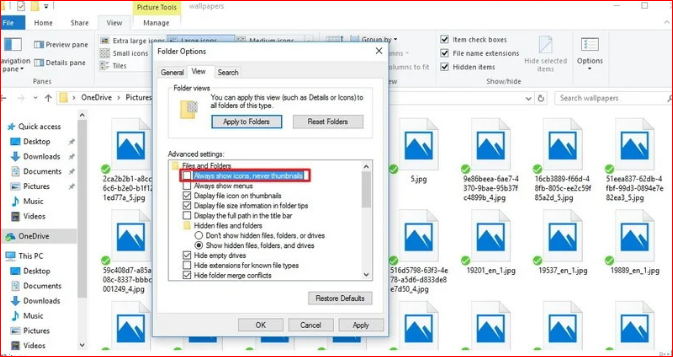
In the case, thumbnails are still not showing at all on Windows 10, chances are that someone or something messed up with your folder settings.

Open File Explorer.
Click on the View tab.
Click Options to open Folder Options.
Click on the View tab.
Make sure to clear the check mark for the Always show icons, never thumbnails option.

Click Apply.
Click OK to complete the task.
If the option was causing the problem, you should now be able to see thumbnails again for files and folders on Windows 10.

Friday, 29 May 2020

How to access shut down menu using a keyboard shortcut

How to access shut down menu using a keyboard shortcut

Once you get used to them, keyboard shortcut combinations can make your computing life easier and more efficient. If you need to log off of a Windows account, change users, or shut down or restart Windows:
Press the Windows key + D to go to the desktop, and then press Alt+F4 to bring up the Shut down menu.
Use the arrow keys to select the appropriate action, press Tab until OK is highlighted, and then press Enter.

Monday, 30 March 2020

Computer networking history


1961


The idea of ARPANET, one of the earliest computer networks, was proposed by Leonard Kleinrock in 1961, in his paper titled "Information Flow in Large Communication Nets."


1965
The term "packet" was coined by Donald Davies in 1965, to describe data sent between computers over a network.


1969
ARPANET was one of the first computer networks to use packet switching. Development of ARPANET started in 1966, and the first two nodes, UCLA and SRI (Standford Research Institute), were connected, officially starting ARPANET in 1969.


1969
The first RFC surfaced in April 1969, as a document to define and provide information about computer communications, network protocols, and procedures.


1969
The first network switch and IMP (Interface Message Processor) was sent to UCLA on August 29, 1969. It was used to send the first data transmission on ARPANET.


1969
The Internet was officially born, with the first data transmission being sent between UCLA and SRI on October 29, 1969, at 10:30 p.m.


1970
Steve Crocker and a team at UCLA released NCP (NetWare Core Protocol) in 1970. NCP is a file sharing protocol for use with NetWare.


1971
Ray Tomlinson sent the first e-mail in 1971.


1971
ALOHAnet, a UHF wireless packet network, is used in Hawaii to connect the islands together. Although it is not Wi-Fi, it helps lay the foundation for Wi-Fi.


1973
Ethernet is developed by Robert Metcalfe in 1973 while working at Xerox PARC.


1973
The first international network connection, called SATNET, is deployed in 1973 by ARPA.


1973
An experimental VoIP call was made in 1973, officially introducing VoIP technology and capabilities. However, the first software allowing users to make VoIP calls was not available until 1995.


1974
The first routers were used at Xerox in 1974. However, these first routers were not considered true IP routers.


1976
Ginny Strazisar developed the first true IP router, originally called a gateway, in 1976.


1978
Bob Kahn invented the TCP/IP protocol for networks and developed it, with help from Vint Cerf, in 1978.


1981
Internet protocol version 4, or IPv4, was officially defined in RFC 791 in 1981. IPv4 was the first major version of the Internet protocol.


1981


BITNET was created in 1981 as a network between IBM mainframe systems in the United States.


1981


CSNET (Computer Science Network) was developed by the U.S. National Science Foundation in 1981.


1983


ARPANET finished the transition to using TCP/IP in 1983.


1983


Paul Mockapetris and Jon Postel implement the first DNS in 1983.


1986


The NSFNET (National Science Foundation Network) came online in 1986. It was a backbone for ARPANET, before eventually replacing ARPANET in the early 1990's.


1986


BITNET II was created in 1986 to address bandwidth issues with the original BITNET.


1988


The first T1 backbone was added to ARPANET in 1988.


1988


WaveLAN network technology, the official precursor to Wi-Fi, was introduced to the market by AT&T, Lucent, and NCR in 1988.


1988


Details about network firewall technology was first published in 1988. The published paper discussed the first firewall, called a packet filter firewall, that was developed by Digital Equipment Corporation the same year.


1990


Kalpana, a U.S. network hardware company, developed and introduced the first network switch in 1990.
1996


IPv6 was introduced in 1996 as an improvement over IPv4, including a wider range of IP addresses, improved routing, and embedded encryption.


1997


The first version of the 802.11 standard for Wi-Fi is introduced in June 1997, providing transmission speeds up to 2 Mbps.


1999


The 802.11a standard for Wi-Fi was made official in 1999, designed to use the 5 GHz band and provide transmission speeds up to 25 Mbps.


1999


802.11b devices were available to the public starting mid-1999, providing transmission speeds up to 11 Mbps.


1999


The WEP encryption protocol for Wi-Fi is introduced in September 1999, for use with 802.11b.


2003


802.11g devices were available to the public starting in January 2003, providing transmission speeds up to 20 Mbps.


2003


The WPA encryption protocol for Wi-Fi is introduced in 2003, for use with 802.11g.


2003


The WPA2 encryption protocol is introduced in 2004, as an improvement over and replacement for WPA. All Wi-Fi devices are required to be WPA2 certified by 2006.


2009


The 802.11n standard for Wi-Fi was made official in 2009. It provides higher transfer speeds over 802.11a and 802.11g, and it can operate on the 2.4 GHz and 5 GHz bandwidths.
2018


The Wi-Fi Alliance introduced WPA3 encryption for Wi-Fi in January 2018, which includes security enhancements over WPA2.

Saturday, 2 November 2019

Ping, Echo, Game terms, HELO, ICMP, Latency, LPB, Network terms, Ping of death, Ping pong

Ping may refer to any of the following:

Ping is a utility first developed by Michael Muss in 1983 that is used to verify whether or not a network data packet is capable of being distributed to an address without errors. The ping utility is commonly used to check for network errors.


The image is an example of what happens when a ping is sent. The user would first start by using the ping command to ping the IP address 206.224.150.3. Next, the request is sent over the network hub and router, in this example, to the other computer with this IP address. Once successfully received, the computer replies to the ping with a pong response. The time between these two transmissions is calculated to generate an average response or latency time.
In the example above, we access the Windows command line to use the ping command. 


Then we ping "xxxxx.com" and get four responses from the server. In the above example, each reply has the size of the packet (bytes), the time it took in ms, and the TTL.

If the ping does not reach its destination due to an error or because it is being blocked, the sending computer encounters a request timed out error or shows no received packets.


The ping command output can also be directed to a file instead of the command prompt window. Working with the example ping command above, we could use the following command.


ping xxxxx.com > ping.txt


The command above will output the results of pinging xxxx.com to a file named ping.txt. The file will be created in the directory where the ping command was executed. In the first example above, the directory is c:\cgi-bin\update and this is where the ping.txt file will be created. To change the directory where the output file is created, we can enter a different directory in the ping command itself, as in the example below.
 

ping xxxx.com > c:\output\ping.txt
 

The example command above creates the ping.txt file in the c:\output directory, instead of in the c:\cgi-bin\update directory.

What is ping short for?

Ping is not an acronym or short for anything. It is sometimes thought of as the backronym packet Internet groper. The word "ping" comes from the sound sonar generates when it detects objects under water.


In networked computer gaming, ping is a measurement of the latency of the game's network connection to the server, measured in ms (milliseconds). Low ping, indicating low latency, indicates a good connection, resulting in more responsive gameplay. High ping indicates network congestion or problems with the server, and may result in poor responsiveness, or "lag." For example, a player with a low 50 ms ping is going to have a better gaming experience than a player with a 250 ms ping.

Wednesday, 30 October 2019

Top 10 Windows 7 tips | Shift | Windows 7 | learn computer online

Top 10 Windows 7 tips

Windows 7 keyboard shortcuts

 
Use the below Windows 7 keyboard shortcuts to make the most of your Windows 7 experience.


Windows key and the arrow keys 

Pressing the Windows key and Left or Right arrow keys will dock the window your viewing to the left or right side of the screen. Pressing the Windows key and the Up arrow will maximize a window and pressing the Windows key and the Down arrow will resize and then minimize the window.
 

Use Shift:

 To stretch a window vertically, press the Windows key + Shift + the Up arrow. If you have multiple monitors, use the Windows key + Shift + the Left or Right arrow keys to move the window to another monitor.
 

Windows key and plus and minus keysIf you ever need to zoom in or out of what is being displayed on your screen press the Windows key and the + (plus) or - (minus) keys. Pressing the plus zooms in and once zoomed in the minus will zoom out.
 

Clear all background programsIf you are not viewing a window in full screen and have other windows open in the background clear all background open windows by pressing the Windows key + the Home key.


Use the Windows 7 search
 

Find and run anything in Windows by using the Windows 7 search box. Click the Start orb or press the Windows key and type the name of the program you want to run or file you want to edit. Windows 7 does a good job at finding an exact match and press Enter to execute that program or open that file. If more than one match is found, use the up and down arrow keys to select the file you want to open and then press Enter.


Running as administrator: 

Some programs may require administrator mode to function properly. If you'd like, you can run any program as administrator from the search box. To do this, type the name of the program you want to run into the search box, but do not press Enter. Instead, press Ctrl+Shift+Enter. This shortcut runs the program as administrator. If you want to click and run a program as administrator hold down the Ctrl+Shift and then click the icon.
 

Take full advantage of the Taskbar


Pin programs to the Taskbar
 

All programs can be pinned to the Taskbar and allow easy access to your favorite programs without having to use the Start menu. To Pin a program to the Taskbar right-click on the program or shortcut to the program and in the menu choose the Pin to Taskbar option. Alternatively, you can also drag the icon to the Taskbar.
 

If you want to remove a pinned program, right-click on the Taskbar icon and click Unpin this program from the Taskbar. Alternatively, you can also drag the icon off of the Taskbar and then click Unpin this program from the Taskbar.

Move the icons and pinned programs


Any pinned or opened program on the Taskbar can be moved and arranged. Left-click on any icon on the Taskbar and drag it to the location you want it to remain.
 

Windows key and a number
 

Pressing the Windows key and a number on the top row of your keyboard open the window corresponding to the open program on your Taskbar. For example, in the picture below of the Windows 7 Taskbar, Firefox i the first icon, Control panel is the second icon, and Adobe Photoshop is the third icon. If the Windows key + 3 was pressed, Adobe Photoshop would become the active window. To make it even easier arrange your icons (as mentioned above) from left to right by most frequently opened.


Pin your favorite folder
 

If you frequently access the same folder (e.g., your favorites, my documents, Dropbox, etc.), pin the folder to the Windows Explorer icon on the Taskbar. To do this, drag your favorite folder to the Taskbar until you see Pin to Windows Explorer. Once pinned, right-click the Explorer icon to access that folder under the Pinned section.
 

Open a second instance
 

If you want to open a second instance or window of a program that is already open, press and hold the Shift key and then click the program icon on the Taskbar.
 

Get to the desktop
 

Click the Aero Peek button on the far right edge of the taskbar to get to the desktop.
 

Customize the Notification area

Windows Vista and Windows 7 allow the Windows Notification area (aka Systray) to be modified. By default, many of the icons shown in the past are now hidden and give Windows a much cleaner look. Customize this area to make icons show or not show by clicking on the up arrow next to the icons and selecting Customize, as shown in the picture. Once in Customize you can choose what programs show, don't show, or only show notifications.


Improve the quality of your text
 

Use the Windows ClearType Text Tuner to improve the overall quality of all text you read on your screen. To start the ClearType Text Tuner, click the Start Orb and type cttune.exe, then press Enter.
 

Enable and disable Windows 7 features
 

Turn on and off Windows features by clicking Start, typing features and press Enter. In the Programs and Features window on the left, click Turn Windows features on or off. Then, in the Windows Features box, check or uncheck the features you'd like to enable or disable.
 

Use the Reliability and Performance Monitor
 

View the reliability history of your computer by using the Reliability Monitor. Click the Start orb, type reliability, and press Enter to view the reliability history. 

In the Reliability Monitor, you'll be able to view the overall reliability of your computer and be able to identify any past problems your computer has had.
 

If you want to view the performance of your computer in real time, use the Performance Monitor. Click the Start orb, type performance, and press Enter for the Performance Monitor. In the Performance Monitor, you can view your computer's performance in real time or view a log of your systems performance.

Re-enable underlined keyboard shortcuts


By default, Windows 7 has the underlines for keyboard shortcuts like those shown in the picture. To re-enable these underlines in all Windows programs follow the steps below.


  1. Open the Control Panel.
  2. In the Control Panel, click Ease of Access.
  3. In Ease of Access, click Change how your keyboard works.
  4. Finally, check the Underline keyboard shortcuts and access keys and then click OK.

Rename multiple files at once


To change the name of multiple files at once, highlight all the files you want to rename in Windows Explorer and press the F2 key. Type in the new name you want to use for all files and press Enter. Once done, all files will be renamed to the name entered, followed by a unique number.


Install Windows Essentials


Install missing Windows software by installing the free Windows Essentials software package. Windows Essentials includes Windows Live Family Safety, Windows Live Mail, SkyDrive for Windows, Windows Movie Maker, Windows 
Photo Gallery, Windows Live Writer, and other programs.


Sunday, 23 June 2019

Browser

Browser


Alternatively referred to as a web browser or Internet browser, a browser is a software program created as a simplified means to present and explore content on the World Wide Web. These pieces of content, including pictures, videos, and web pages, are connected using hyperlinks and classified with URIs (Uniform Resource Identifiers).
There have been many different web browsers that have come and gone over the years. The first, named WorldWideWeb (later changed to Nexus), was invented by Tim Berners-Lee in 1990. However, the first graphical browser and widely used browser that help bring popularity to the Internet was NCSA Mosaic.

List of current Internet browsers.

Where can I download a different browser?
What happens when you first open a browser?
What is needed for a browser to work?
Getting around in a browser.
Overview of browser bar buttons, menus, and functions.
What is my browser and other system information?


Related browser pages.
Internet browsers help and support.


List of current Internet browsers
Google Chrome
Microsoft Edge
Microsoft Internet Explorer
Mozilla Firefox
Opera
Apple Safari
Amazon Silk


Where can I download a different browser?
Note
The following links open in a new window. Once downloaded, you'll need to open your download folder and start the install for the browser to be installed on your computer.
Google Chrome - https://www.google.com/chrome
Mozilla Firefox - https://www.mozilla.com/firefox
Opera - https://www.opera.com
Apple Safari - https://www.apple.com/safari
Tip
As long as your computer supports the browser requirements, your computer can have more than one (or all) of the above browser installed and even running at the same time.
What happens when you first open a browser?
When you first open your Internet browser, it will load your homepage or show a start screen with your favorite pages. Once open, you can browse the Internet by following any of the hyperlinks or use a search engine to search for what you would like to find.
Note
If you changed your browser settings, it may also open the last opened web pages or all the tabs you had opened when it was last closed.
What things to do when bored on the Internet?
What is needed for a browser to work?
A browser needs a computer, smartphone, or tablet that meets the system requirements and that has a working Internet or intranet connection that allows it to connect to other computers.
Getting around in a browser
Each browser has a navigation toolbar that helps you find your way around the Internet. As seen in the images below, the navigation toolbar has undergone significant changes to streamline its appearance and functionality. However, the toolbar is likely never going to lose the navigation arrows and address bar.


Overview of browser bar buttons, menus, and functions
As we mentioned in the previous section, over time, many Internet browser buttons and options have either been moved or done away with completely. Consequently, some of the options mentioned below may not be immediately visible on your browser.
Tip
In certain browsers, pressing the Alt key on your keyboard shows hidden options.
Settings (menu)
Nearly all modern browsers today have moved advanced options and features in the upper-right or left corner of the browser window. Each browser's menu button is different:
For example, Internet Explorer uses , Chrome uses , Firefox uses , and Opera uses .
How to access Internet browser settings.
Back
The back button visits the previous page that referred you to the page you are currently viewing. This button often resembles an arrow pointing to the left.
Why does my Internet back button sometimes not work?
Creating an HTML back button.
Forward
The forward button moves you forward a page. It only works if you have previously used the back button. If you have not gone back, and your browser shows a forward button, it will be grayed out.
Stop
The stop button no longer exists in the majority of modern web browsers. However, its function (to stop a web page from loading) may still be executed by pressing the Esc key.
Refresh (reload)
As you browse the Internet the browser cache's data it downloads, meaning they store some or all parts of each page you visit on your computer. This feature is useful as it allows users to not have to download the full page each time they visit the same site. On some sites, you may want to refresh the page to get the latest version (e.g., on a news site). The Refresh button can also be used to reload a page that has failed to load because of an error.
Tip
Press the F5 key or Ctrl+R to refresh the page from the keyboard. If the F5 key is not working, you can also do a force reload by pressing Ctrl+F5 in Windows or on an Apple computer press command+R.
Home
The Home button is used to return users to their default web page; the same page that loads when the browser is first opened.
How to change my browser's homepage.


SearchIn the past, the Search button was used to open a user's default search page or execute a search on the text found in the address or URL text field. Today's browsers have what is called an omnibox, which is a search function built into the address bar.
 

FullscreenThis function is used to make the browser window a fullscreen; temporarily removing the toolbar, buttons, and address bar. Often, this view mode may be toggled on and off by pressing the F11 key on your keyboard.
 

HistoryThis feature allows users to view the pages that have been visited since the browser history was last cleared or created. All your saved pages are stored in your Internet cache.
 

How do I clear my Internet browser history?
 

Tip
The shortcut key for history for most browsers is Ctrl+H.
 

Favorites (bookmarks)This folder stores websites or pages chosen by the user. The term "Favorites" is used with Microsoft Internet Explorer; in other browsers this may be known as bookmarks or a hotlist.
 

How do I create an Internet favorite or bookmark? 
PrintThis feature, although no longer a button and may be accessed through the main settings menu or pressing Ctrl+P on the keyboard.
 

How to print a web page. 
Font (size)This button no longer exists but was used to increase or decrease the size of a font; an option now covered by the zoom feature.
 

ZoomOn modern browsers, holding down the Ctrl key and pressing either the "+" (plus key) or "-" (minus key) zooms in or out, increasing and decreasing the size of font and images. To reset the zoom function to its default size, press Ctrl+0 (zero) at the same time.
 

MailUsed to open a user's preferred e-mail program. Today, this option is no longer found in browsers.
 

EditUsed to open and edit the web page you are currently viewing in an HTML editor. Today, no longer found in browsers.
 

Related browser pagesHow do I clear my Internet browser history?
How to find version of installed Internet browser.
How to determine your browser, browser version, and installed browser plugins.
How do I update my browser?
Can I have more than one Internet browser installed?
How do I enable or disable JavaScript in my browser?
History of the Internet.
Internet browsers help and support.
ActiveX, Address bar, BHO, Bookmark, Browse, Cookie, Cross-browser, Internet, Internet terms, Konqueror, Lynx, Mosaic, Netscape, Omnibox, Plug-In, SeaMonkey, Tabbed browsing, Web, Web design terms

Graphics program

Graphics program

Alternatively referred to as a graphics editor, a graphics program is a software application that allows you to draw, edit, and manipulate an image or graphic file. A good example of a graphics program is CorelDRAW.

Excel Microsoft Office Excel spreadsheet Microsoft Excel

Excel

Code-named Odyssey, Excel is a software program from Microsoft that is part of the Microsoft Office suite of productivity software developed by Microsoft. Released on September 30, 1985, Excel is capable of creating and editing spreadsheets that are saved with a .xls or .xlsx file extension. General uses of Excel include cell-based calculation, pivot tables, and various graphing tools. For instance, with an Excel spreadsheet, you could create a monthly budget, track business expenses, or sort and organize large amounts of data.
Unlike a word processor, such as Microsoft Word, the Excel documents consist of columns and rows of data, made up of individual cells. Each of these cells can contain either text or numerical values that can be calculated using formulas.
 

  • Excel overview.
  • How can Excel be formatted?
  • Download an example of a spreadsheet file.
  • Why do people use Excel?
  • Why would someone use Excel over a different spreadsheet program?
  • Related Excel pages.
  • Microsoft Excel help and support.


Excel overview
Below is an example of Microsoft Excel with each of its major sections highlighted. See the formula bar, cell, column, row, or sheet tab links for further information about each of these sections.


How can Excel be formatted?
Each of the rows, columns, and cells can be modified in many ways, including the background color, number or date format, size, text font, layout, etc. In our above example, you can see that the first row (row 1) has a blue background, bold text, and each cell has its text centered. 


Download an example of a spreadsheet file

 
We've created a Microsoft Excel spreadsheet that can be downloaded and opened in any spreadsheet program including Microsoft Excel. This spreadsheet helps illustrate some of the capabilities of a spreadsheet, formulas, and functions used in a spreadsheet and allows you to experiment more with a spreadsheet.


Why do people use Excel?
There are many reasons people may use Excel (a spreadsheet program). For example, someone might use Excel to keep track of their expenses. For a full list of reason and examples of how people use a spreadsheet, see our spreadsheet definition.


Why would someone use Excel over a different spreadsheet program?
Today, there are many different free spreadsheet options that someon
e could use instead of Excel. However, even with the available free options, Excel remains the most used spreadsheet because of all its available options, features, and because many businesses still use the program.


Tip
Even with all Excel's options for most people a free spreadsheet program like Google Sheets is often all most users need.
Note
If you want to get Excel because it is a job requirement, it is still ok to learn all the basics in a free spreadsheet program. However, there are still many differences between Excel and a free spreadsheet program.


Related Pages
  • How to create a spreadsheet.
  • Where can I get a free spreadsheet program?
  • Microsoft Excel keyboard shortcuts.
  • How to add or remove a cell, column, or row in Excel.
  • How to hide rows or columns in Excel.
  • How to select an entire row or column in a spreadsheet.
  • How to create, delete, rename, and move a worksheet in Excel.
  • How to create, delete, and move files and folders in Google Drive.
  • Help, examples, and information on Excel formulas.
  • Microsoft Excel help and support.

Use the Windows Magnifier to zoom in on parts of your screen.

Use the Windows Magnifier to zoom in on parts of your screen.

The Windows Magnifier is a great accessibility tool that allows you to zoom into any portion of your screen you find hard to read. This feature can be found in the Control Panel in the Ease of Access Center. It can also be quickly accessed by holding down the Windows key and pressing the + (plus) key to zoom in or - (minus) key to zoom out. When enabled, the Magnifier box and the current magnification will be shown, as seen in the picture.


Zoom

Zoom may refer to any of the following:

1. When referring to an image or graphic, zoom describes the function of focusing on a section of an image and increasing its overall size to manipulate or view in greater detail. The image at right is zoomed in 1600% of its original size.
As can be seen in the image, as you zoom into an image each of the pixels that make up the image grow and make the image appear pixelated or jaggy. Unfortunately, unlike in the movies, you cannot "enhance" the image to make a zoomed image clearer.
Tip
Many graphics programs and Internet browsers support the keyboard shortcut key "Ctrl+minus key" to zoom out and "Ctrl+plus key" to zoom in on a picture or web page. Also, "Ctrl+0" (the number zero) will reset the zoom to the default zoom level.


Monday, 4 February 2019

Pattern recognition

Pattern recognition
The ability of a computer software program to recognize aspects of an audio or visual data stream. One example of pattern recognition is OCR software, which finds the patterns of letters and numbers in an image and converts them to text.

Scanner

Scanner

A scanner may refer to any of the following:
 

1. When referring to hardware, a scanner or optical scanner is a hardware input device that optically "reads" and image and converts it into a digital signal. For example, a scanner may be used to convert a printed picture, drawing, or document (hard copy) into a digital file which can be edited on a computer. The picture shows an example of a flatbed scanner, the Epson V300.

  • How is a scanner connected?
  • Other types of computer scanners.
  • When was the first scanner created?
  • Why is a scanner an input device?

Related scanner pages.
Computer scanner help and support.


How is a scanner connected?


A scanner can be connected to a computer using many different interfaces although today is most commonly connected to a computer using a USB cable.

Firewire
Parallel
SCSI
USB


Other types of computer scanners
There are also other types of scanners that can be used with a computer.

Sheetfed scanner - scans paper by feeding it into the scanner
Handheld scanner - scans text and images by dragging the device over the page you want to scan
Card scanner - designed to scan business cards
Note: A handheld scanner should not be confused with a barcode reader.

When was the first scanner created?

The earliest forms of scanners appeared in the 1860s. However, the scanner as we know it today was created in 1957 by a man named Russell Kirsch at the United States National Bureau of Standards. The first image scanned by this device was a picture of Kirsch's son. This black and white image measured only 5x5 cm and had a resolution of 176 pixels on each side.

Why is a scanner an input device?

A computer scanner is a digitizer, which is a type of input device. It takes information from the real world (e.g., a document or picture) and converts it into digital information for a computer to store or manipulate. A scanner is only able to send information to the computer and cannot receive information from the computer like a printer (which is an output device).

Related scanner pages
Computer scanner manufacturers.
Computer scanner help and support.

 
2. When referring to software, a scanner may refer to any program that scans computer files for errors or other problems. A good example is an antivirus program, which scans the files on the computer for viruses or other malware.

Accessory, Photocopier, Picture, Scan, Scanner terms

Scanner terms

Scanner terms


Top Scanner Terms


Optical scanner
Image
Business card reader
OCR
Optical reader
TWAIN
Scan line


A
AAS

B
Business card reader

C
Card scanner


D
Digitize

E
Currently no listings

F
Flatbed scanner

G
Currently no listings

H
Handheld scanner


I
Image
ISIS

J
Currently no listings

K
Currently no listings

L
Currently no listings

M
Currently no listings

N
Currently no listings

O
OCR
Optical reader
Optical scanner

P
Currently no listings

Q
Currently no listings

R
Currently no listings

S
Scan head
Scan line
Scanner
Sheetfed scanner
Spatial digitizer

T
TET
Text Enhancement Technology
TWAIN

Good Morning Beautiful

Do you know????

Do you know????
/